Impressions but no clicks in Search Console: what should you change?
Investigate low click-through rates by query, page and device. Use a diagnostic workflow to decide between a title change and a content fix.
Last checked:
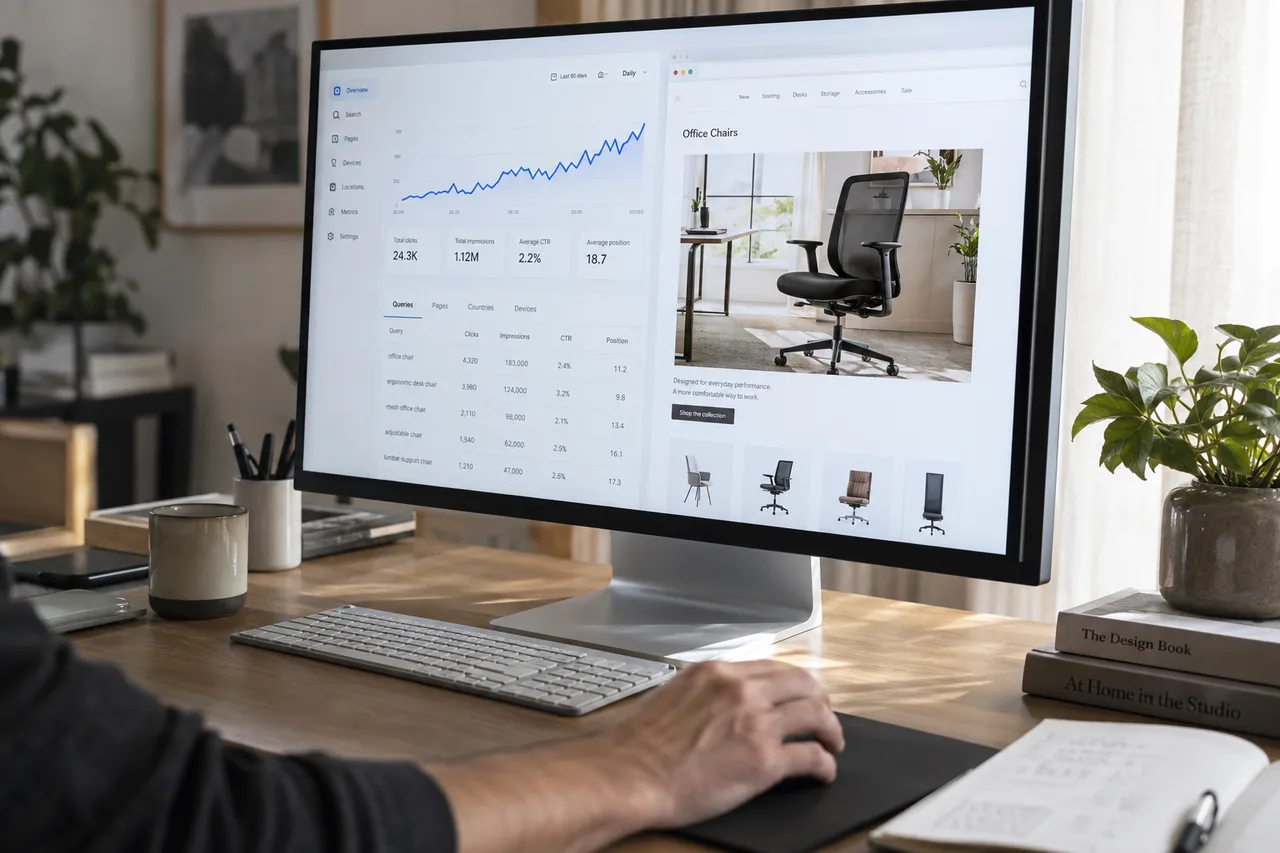
Your office chair category has thousands of impressions, but clicks barely move. You may be tempted to add “best” or “discounted” to the title. First find out where those impressions come from: people looking to buy, people researching chair repairs, or people seeing your page far down the results. The same total can point to different tasks.
You need Search Console access, one page you can edit and a simple change log. Start with one query: why aren’t people clicking your page? Check its title, position in search results and how well its content matches the search to understand what may be holding it back.
1. Narrow total impressions down to one page
Choose Web as the search type in the Performance report. Comparing the last 28 complete days with the previous 28 days is a useful starting point that balances weekdays. This is not a test window required by Google. Use a longer period for low volumes, and note any campaign or seasonal changes.
Filter to the category URL in the Pages tab, then open Queries. Keep country and device fixed. Click-through rate is clicks divided by impressions; average position is not one fixed ranking. Combining mobile visitors in Türkiye with desktop visitors and other countries can hide the actual problem.
2. Group queries by what the customer wants to do
For an office furniture store, “mesh office chair” suggests a shopping task, while “how to replace an office chair gas lift” suggests a repair task. Do not rewrite a category title around repairs simply because that query generates impressions. First check whether the store actually offers replacement parts or repair advice.
Evaluate queries containing your brand name separately too. Someone who already knows you faces a different decision from a first-time shopper. Create three short lists: queries suited to the category, questions that belong on another page, and needs your business does not serve.
| Observed pattern | Check first | Possible action |
|---|---|---|
| Relevant query, low position | Does the page meet the need? | Product selection and content coverage |
| Relevant query, similar position, fewer clicks | Is the result's promise clear enough? | Title and description experiment |
| Repair query, shopping category | Is the wrong page appearing? | Content linking to a relevant guide |
3. Compare the search result's promise with the page
Inspect the chosen query with the target country and device in mind. Record the date; the results you see do not represent every user. How much screen space goes to product listings, images or direct answers? Do nearby results explain dimensions, prices or delivery while yours only says “quality products”?
Apply the same question to the first screen of your page. If the title promises adjustable armrests, suitable products should be easy to find. If delivery varies across the category, do not give every product one delivery estimate. Make the search result clearer using information the page can actually support.
4. Write a title hypothesis and start with one variable
If your products support it, you could test “Mesh Office Chairs: Adjustable Models | Store” instead of “Office Chairs | Store”. The hypothesis is that visitors will understand the product selection faster. Do not add unsupported claims such as “lowest price”, “relieves pain” or “next-day delivery”.
Google can build the search title from several page signals, so it may not display your title tag verbatim. Keep the visible main heading and title tag focused on the same topic. Change the title first and record the date. Changing the copy, product order and campaign on the same day makes the outcome harder to interpret.
5. Write the description as a brief buying aid
Example description: “Compare mesh office chairs by seat height, armrest adjustment and dimensions. Check delivery details on each product page.” Use it only when those comparison details are available. Do not reuse the same description across desk, meeting table and chair categories.
Google can use page content or the meta description, and can show different snippets for different queries. Editing only the meta description may therefore be insufficient. Include important buying information clearly on the page as well; do not treat a particular character count as a visibility guarantee.
6. Evaluate the result under the same conditions
On the review date, use the same URL, query group, country and device filters. If click-through rate increased, check impressions and position too. For example, a rise from 1% to 2% alongside a halving of impressions may leave total clicks unchanged. Read these measures together.
When data is sparse, “inconclusive” is a valid decision. If position changed substantially, do not isolate the title as the cause. More clicks do not necessarily mean more sales; review orders or quote requests separately within your own measurement setup.
- Record: URL, query group, old and new copy, publication date and review date.
- Decide: keep the change, revert it or collect more data; explain why in one sentence.
- Next task: record the first experiment's outcome before testing a second hypothesis on the same page.
This guide was prepared with AI assistance using official sources. Examples are not customer results and do not promise performance improvements.